Creating a Club Order
Last updated: October 21, 2026
In this article, learn how to create new wine club packages and add your shipment details. Choose between our two setup options - Customer Choice and Wine Makers Choice - and easily fulfill wine club orders within your Corksy portal.
Here we will review:
Set up a new wine club package
Steps:
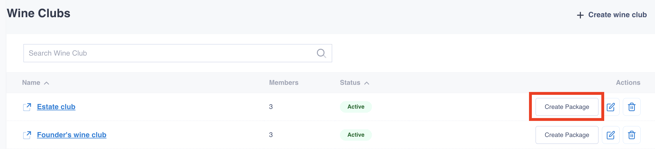
To create a new wine club shipment, start by navigating to the Clubs tab.
Click Create a Package next to the applicable wine club tier. If you have not already created a tier, see Create a Wine Club.
You can also click into the wine club tier and create a package with the button in the upper right-hand corner
Choose between the Customer Choice or Wine Makers Choice package type.
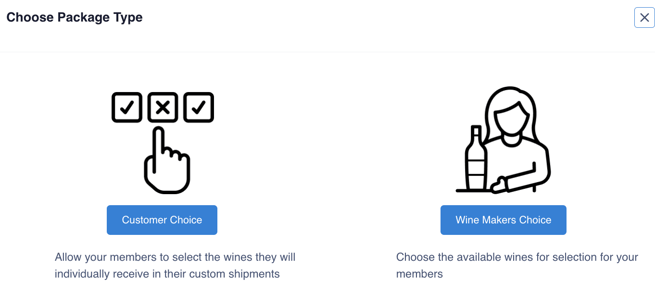
Option 1: Customer Choice Package
Allow your members to select the wines they will individually receive in their custom shipments.
You will be able to set a "close date" for customers who did not customize their shipments. Customers who do not choose by your determined date will be sent the default wines you select.
Setup:
Choose between a required Minimum Order Value or Minimum Number of Bottles
The minimum number of bottles option requires a certain quantity of bottles in the cart. Customers will be able to add more.
The minimum order value option requires a customer to spend a certain amount before processing the order.
Choose the Processing Date (required). It tells members when to expect their club charge, but nothing is charged automatically when it arrives. Members are charged when you process their orders. See When are members charged?
Choose the default products in the shipment. The customer will be able to customize the selection if desired.
Default quantity - The number of bottles preselected for the customer.
Minimum quantity - The number of bottles the customer MUST have in their cart
Maximum quantity - The maximum number of bottles a customer can purchase.
Do not put 0 if there is no maximum, this will make the product unshoppable
If you have no maximum, put 100+
Once you SAVE the wine club shipment, a DRAFT will appear

Click OPEN to proceed with the wine club order. See Open your "Customer Select" wine club package.
Option 2: Wine Makers Choice Package
Choose the wines you want to make available for selection for your members.
Your members will not be able to select wines outside of your selection. You can also set minimums and maximums for the number of bottles of a particular wine they can purchase.
Setup:
Choose the Processing Date (required). It tells members when to expect their club charge, but nothing is charged automatically when it arrives. Members are charged when you process their orders. See Creating your Winemaker's Choice Clubs.
Choose the default products in the shipment. The customer will NOT be able to customize the selection if desired.
If you want to give customers the ability to customize their shipments and add more bottles, choose Customer Select Packages
Once you SAVE the wine club shipment, a DRAFT will appear

Click OPEN to proceed with the wine club order. See Open your "Wine Makers Choice" wine club package.
Example packages
Looking for more help? See Examples - Customer Choice and Wine Maker Choice Packages.
Next Steps: Open your wine club
Feel confident in creating club orders? Let's see how to open them.
For "Customer Choice" packages, see Open your "Customer Select" wine club package.
For "Wine Maker Choice" packages, see Open your "Wine Makers Choice" wine club package.