Setting Up Package Weights
Last updated: November 6, 2026
Entering box weights is very important to display accurate shipping rates. UPS, USPS, and FedEx need accurate package weights to calculate the appropriate shipping fee. This means the EMPTY box weight.
The final weight rate at checkout will be the bottle weight + the package weight
Example: A 2 bottle order at 8 lbs + a 2 bottle shipper at 2 lbs = total package weight of 10 lbs; UPS/FedEx/USPS will provide the live rate for 10 lbs
In this guide we will review:
Hints for better shipping practices
Different box sizes
Bottle weights
Free shipping
Setup Guide
Follow these steps:
Navigate to "Settings" in your portal and click on "Shipping & Delivery"
Scroll down to the section that says "Shipping Packages"
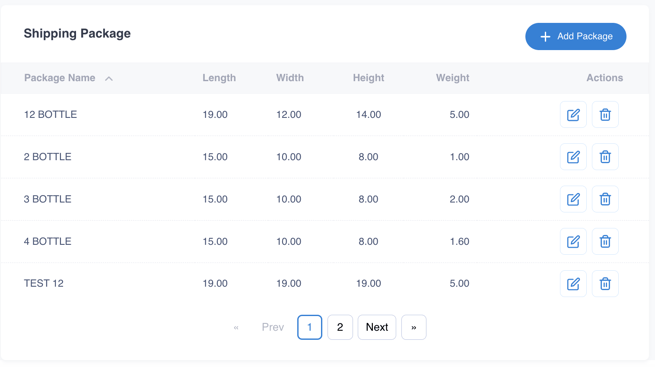
Click "Add Package"
Enter the length, width, height, and weight of the EMPTY box
Add as many rates as applicable. Example: 1 through 12 bottle boxes
Hints for better shipping practices
The weight on an order or on Assign Shipping Method looks wrong
The package weight is the weight set on each product plus the empty weight of the shipping box.
A product with no weight counts as 0 lb. Check each wine's Weight, in the Shipping section of the product under Products (see Edit an Existing Product).
If no shipping package is set up, no box weight is added. Add your boxes under Settings → Shipping & Delivery → Shipping Packages.
Then assign the shipping method again.
What if someone orders 4 bottles and I only have a 3 and 6 bottle box?
The next highest box cost and weight will be selected
In this case, a 4 bottle order will charge a rate for a 6 bottle box
What about bottle weights?
The weight of each product can be edited in your Products tab
The weight of each bottle can be different
The total weight is calculated at the customer's checkout
Want to offer free shipping?
Create a manual shipping rate based on weight or price.
Packages over 50 lbs are free
Or packages over $300 are free