Refund orders
Last updated: September 29, 2026
Full Refund (restocking the wine)
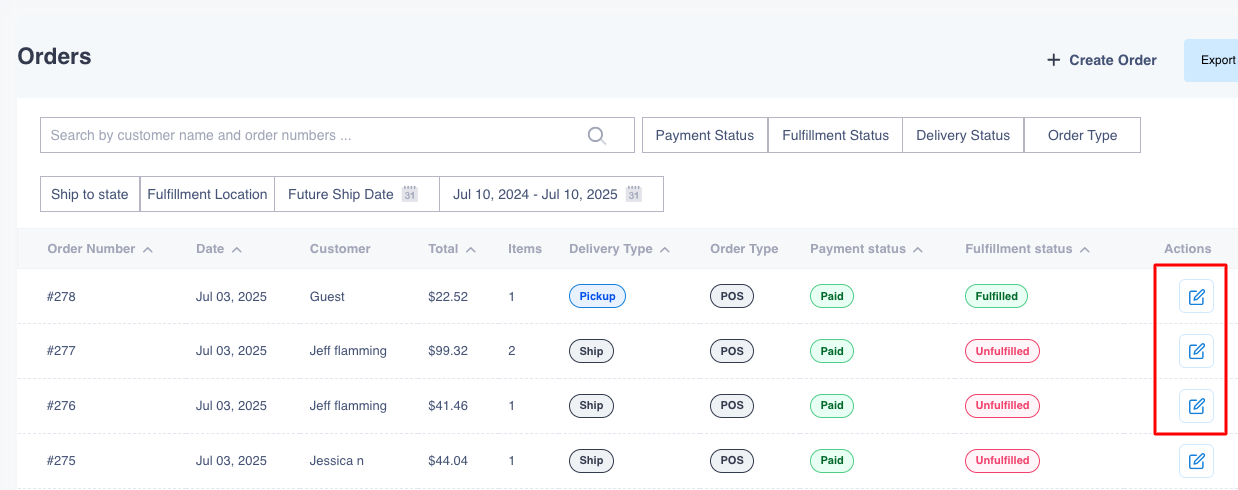
While logged in to the Corksy Admin Portal go to the Orders section and locate the order in question and click on the Edit icon under Actions.
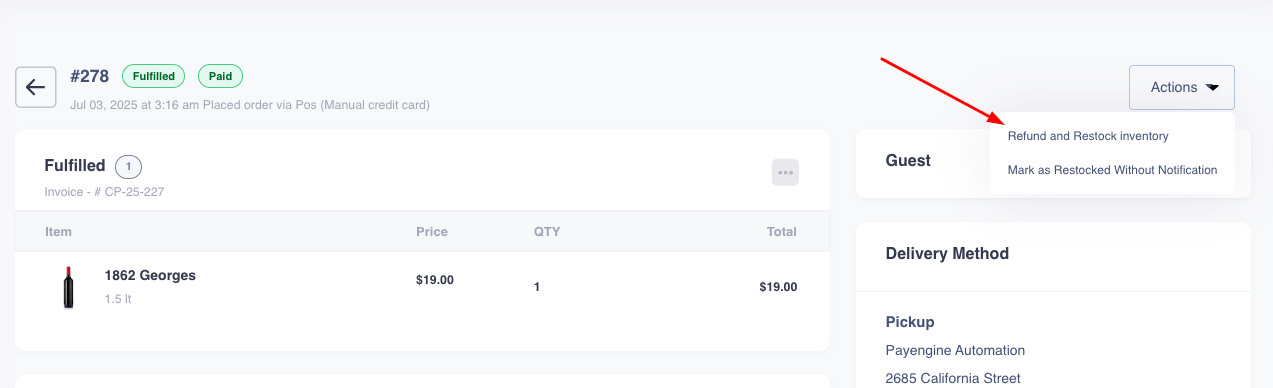
Once inside the order, on the top right corner click on the "Actions" button click on the "Refund and Restock Inventory".
A prompt comes up to leave a note/reason as to why the refund is needed, here you can choose to send an email to confirm refund to the end consumer or not by activating the "Send Email" checkbox.
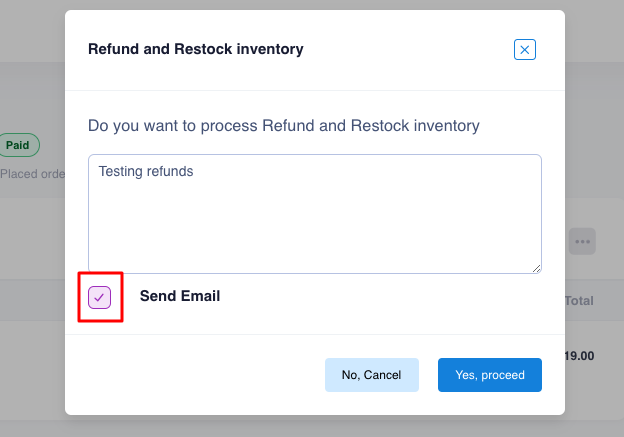
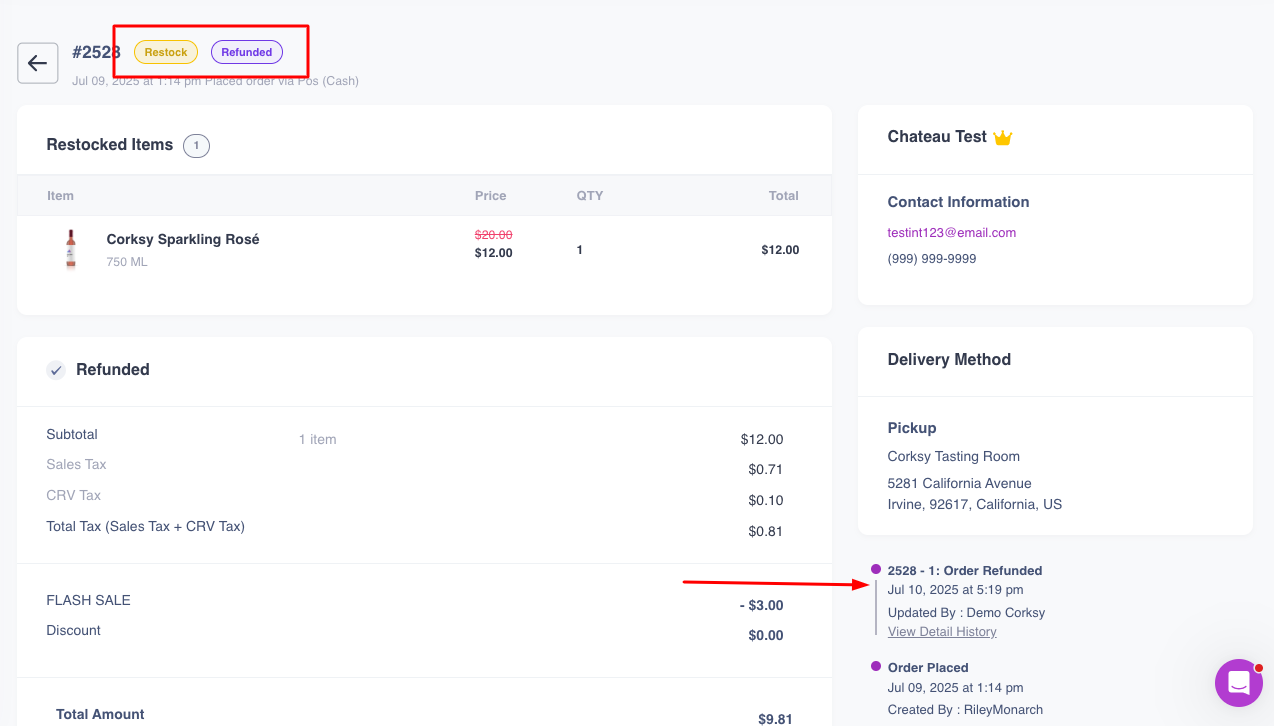
Once finished click on "Yes, Proceed" button to complete the refund of the order, this will change the status to "Restock", and the payment to "Refunded".
Partial Refund
To be able to do a partial refund or exchange, the order must be unfulfilled, orders created in the POS with terminal or cash are examples of orders that at the moment you can't change to unfulfill in the Admin Portal.
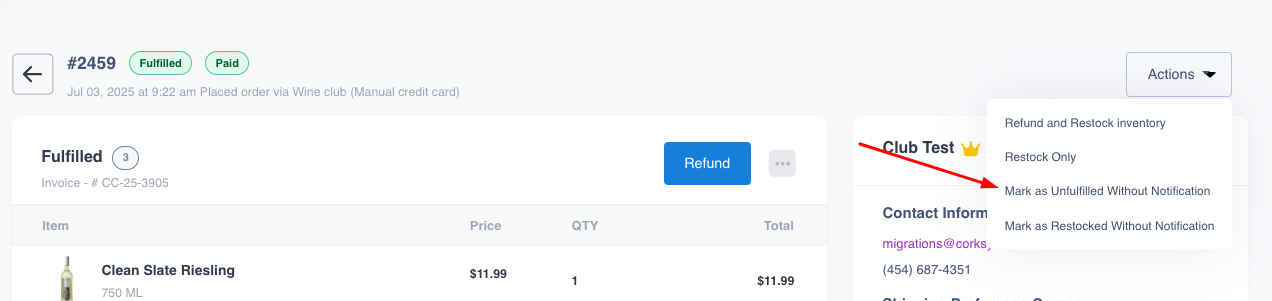
Once you have identified the order that needs to be partially refunded, click on the Actions button to "mark as unfulfilled without notification".
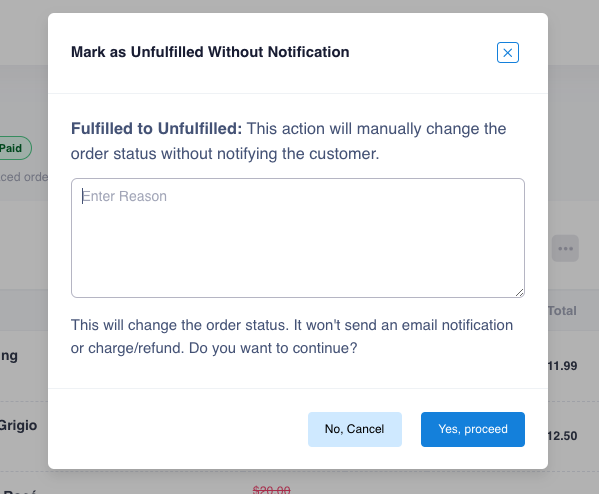
This will prompt a note as to why the action was taken, once you've given the reason click on Yes, Proceed to move to the order.
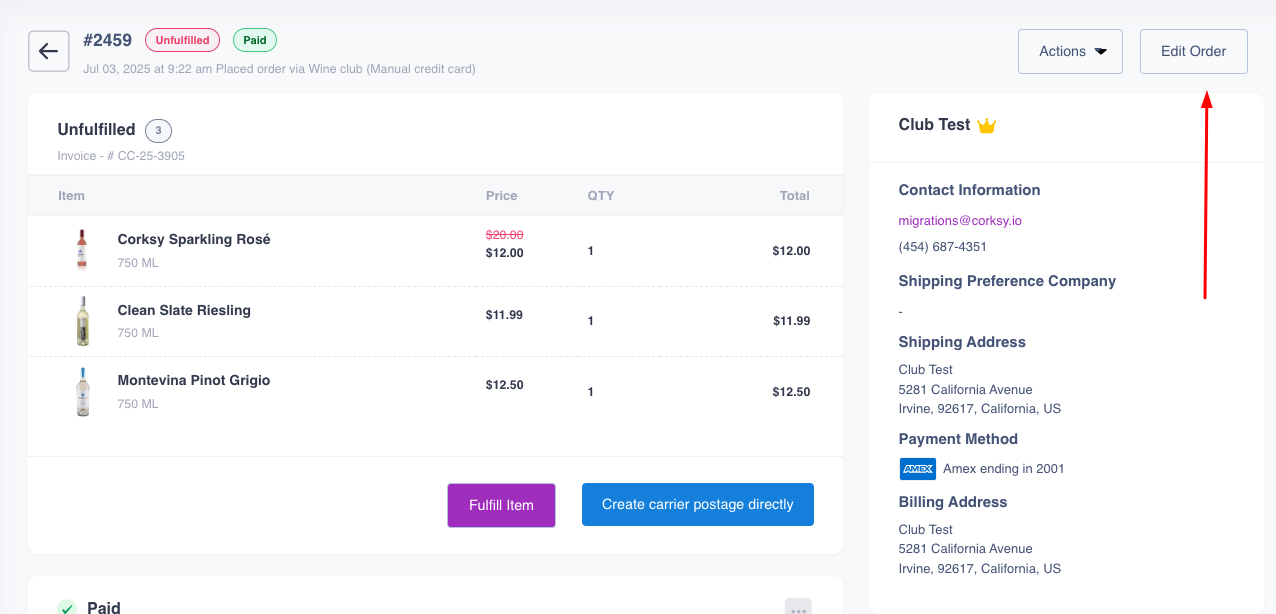
Now you'll be able to see an "edit" button next to "Actions" in the top right corner, this should take you into the order as if it was a draft order
Once in the order, you can make the necessary changes to complete your partial refund, for example, below you can see that one bottle of Corksy Sparkling Rose is being refunded, once the movement is made you'll see the changes to the order right above the "Summary" section.
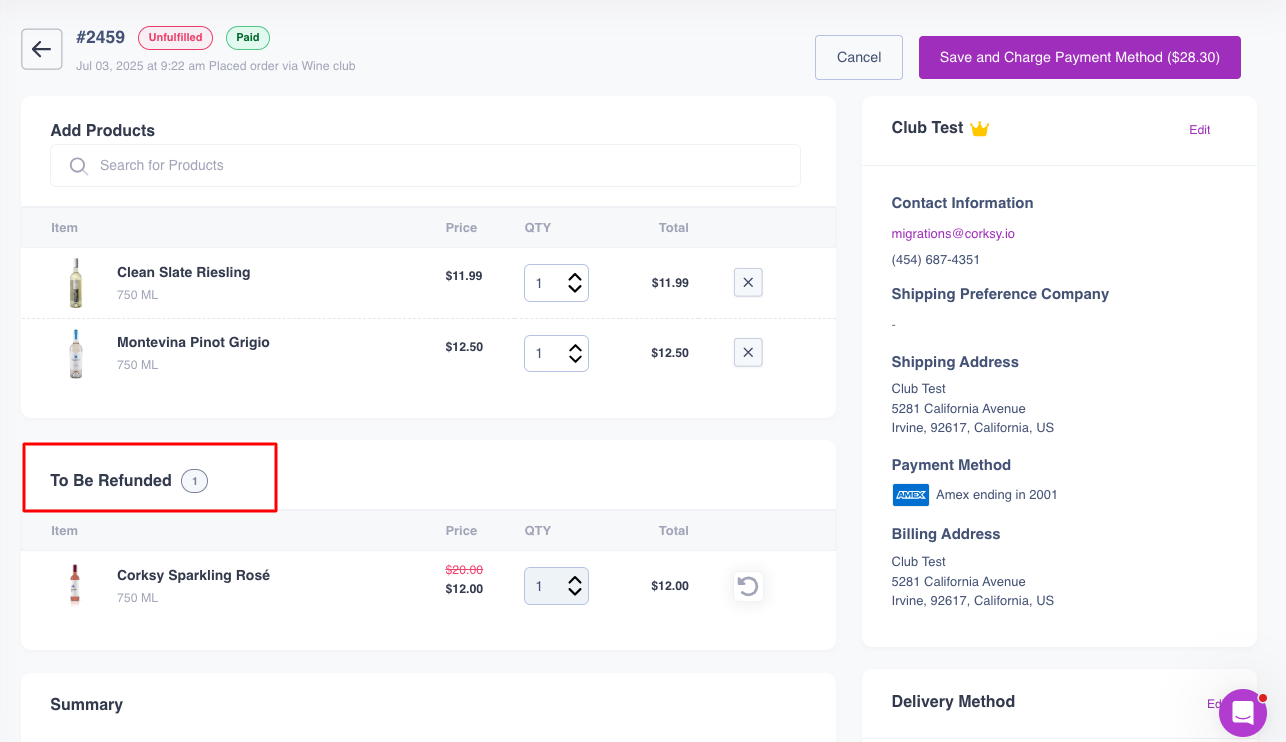
At this point you can also change the contact information if address or any personal updates are needed, or the shipping/payment methods. Once all changes are done, just click on the button that states "Save and Charge Payment Method"
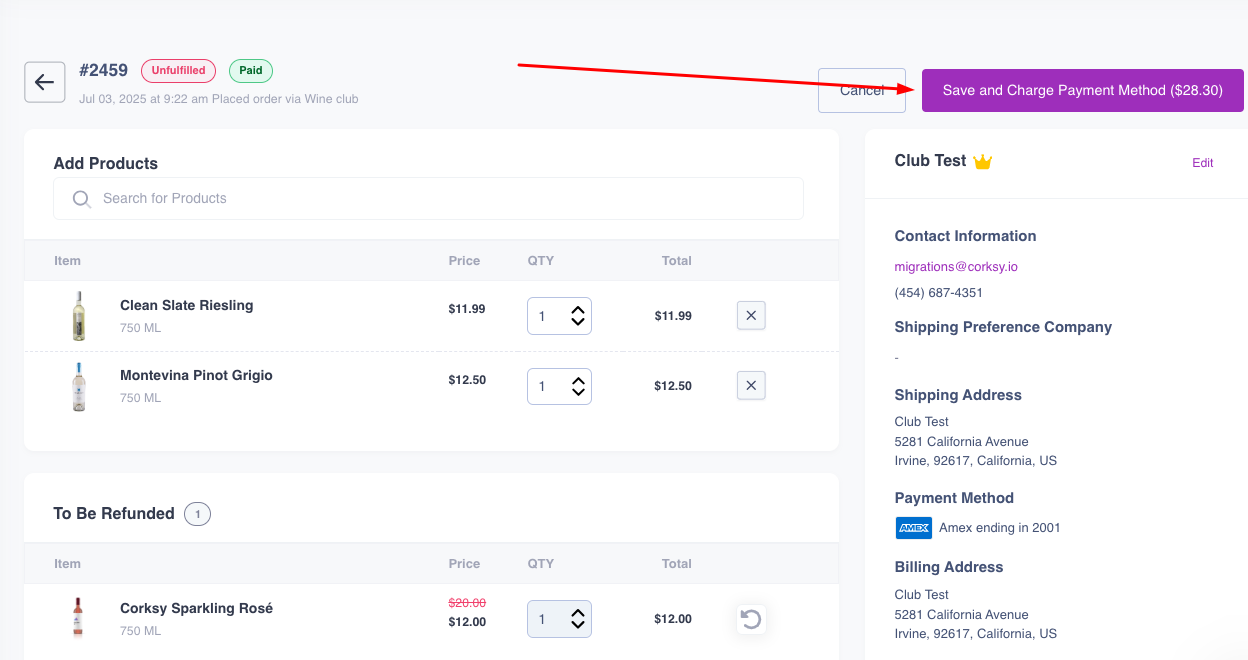
Now the order is left as "Unfulfilled" and ready to be finished in the order having refunded the quantity needed.
Refunding an order without inventory changes
If an order needs to have a set amount refunded without restocking, this would be the method for this, this could be when a promo did not apply and need to refund the promo quantity.
Once you have identified the order in question and have access it, there is a blue "Refund" button on the top.
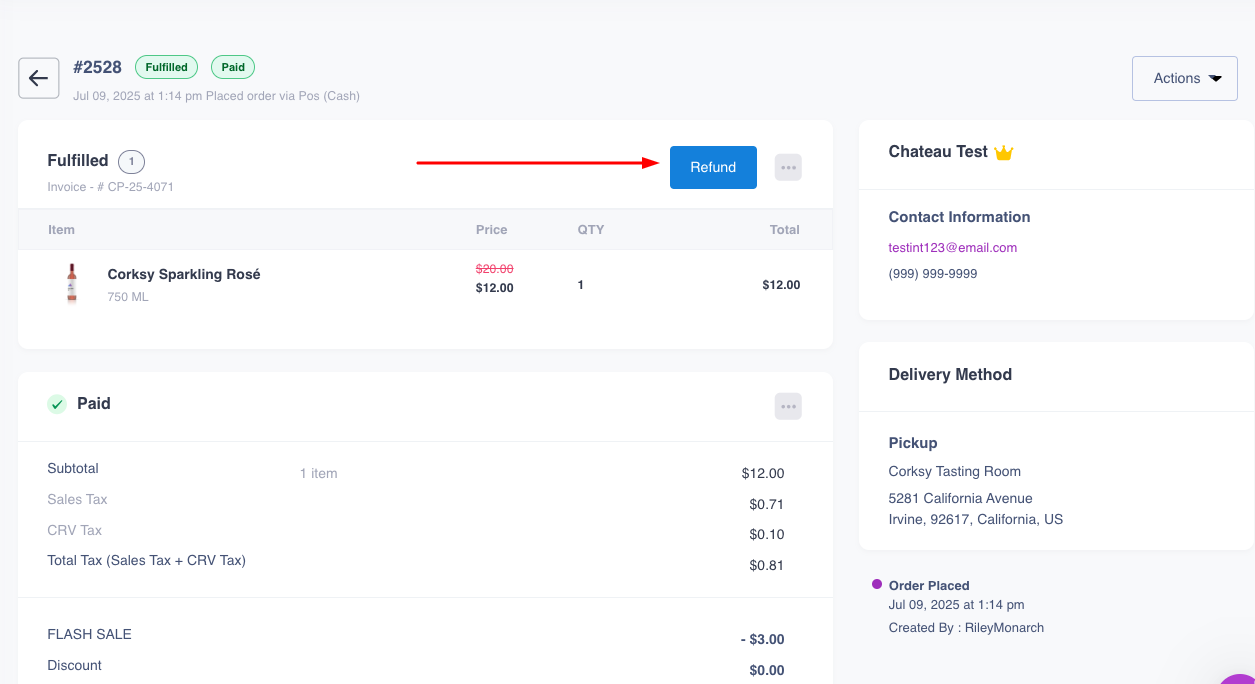
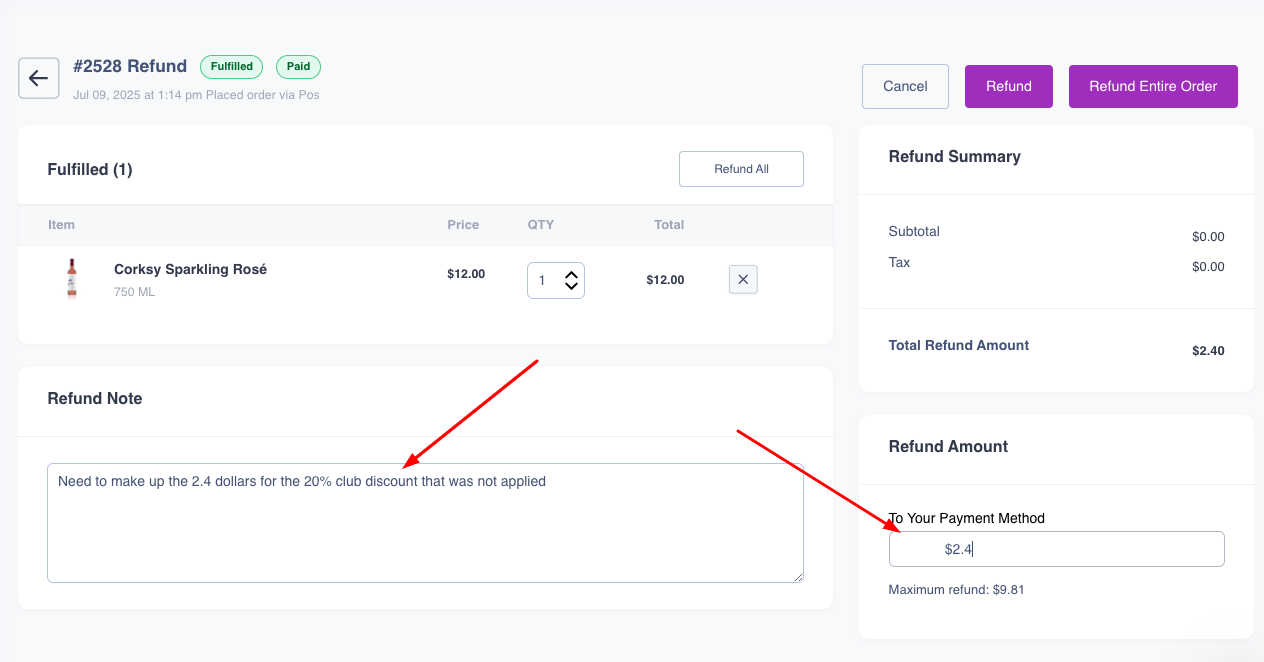
After clicking on refund, the order opens and asks for the refund note, after filling this you will need to choose between a full or partial refund.
For refunding a set amount, you will enter it at the bottom right in the "Refund Amount" section, and clicking "Refund".
Or if you need to refund the full order (wine was corked) then you can select "Refund Entire Order".
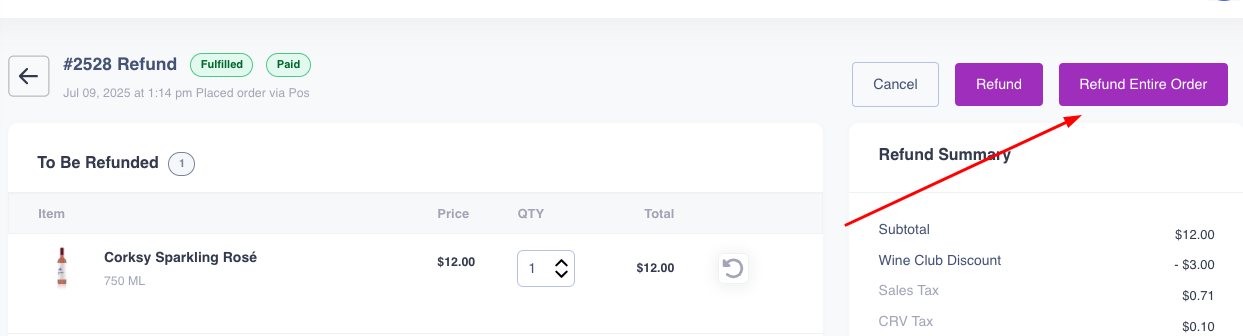
Once this is clicked you will get the confirmation pop-up window asking if you are sure to refund the entire order amount to the card on file, clicking Yes on this box will conclude the refund.